Sign In
trueKAMC External Site | King Abdullah Medical City | MFA


​​​​​​​
How to enroll?
Install SafeNet MobilePASS+ application in your mobile
Watch the video to learn about the steps to configure your MFA, or read the instructions below.
​​https://​www.kamc.med.sa/Security_Awareness/MFA.mp4​
To continue, it's recommended to open this email from a computer and then follow the steps:​


First case: If you opened this email from a computer:

You will receive another email for activation after this one
Sender name: "Multi-Factor Authentication"

Subject: “MFA Activation Link"

  1. Click the link in the activation email
  2. Select your device type
  3. Open MobilePass+ in your mobile
  4. Scan the QR code


Second case: If you opened the link from a computer:

You will receive another email for activation after this one
Sender name: "Multi-Factor Authentication"

Subject: “MFA Activation Link"

  1. Click the link in the activation email
  2. fSelect your device type from the list
  3. Copy the code
  4. Open the “MobilePASS+" application in your phone
  5. Select “No QR Code"
  6. Paste the code​
How will remote access (VPN) be handled after activating multi-factor authentication?
When attempting to connect remotely (VPN) from 5th May, you will enter your username in the FortiClient program as usual. However, in the password field, you will only need to enter the code displayed in the MobilePass program, and you do not need to enter a password.
vpn.png

How to access KAMC's applications from the internet?
When accessing applications portal through KAMC's website (www.kamc.med.sa), you will enter your username as usual. However, in the password field, you will only need to enter the OTP code displayed in the MobilePass mobile application, and you do not need to enter a password.

vpn2.png


In commitment to protecting your data and to further strengthen our security measures, we are implementing a new Multi-Factor Authentication (MFA) system. Starting Sunday May 26th 2024, remote access to KAMC (VPN) will only be possible with MFA. You need to take an action.

 What do you need to do?​​
Enroll your account in MFA as soon as possible.
 How to enroll?
1-  Install Google Authenticator app in your mobile
   Email with an activation​ link will have the following properties:
   Subject: "Two-Factor Authentication Activation Link"
   Sender: "Multi-Factor Authentication"

  Click on the link in the email to open the activation page.
 
  If you are opening the activation page from a device other than your mobile phone:
     1-    Open the Google Authenticator app on your mobile phone.
     2-    Select "Add a code".
     3-    Scan the barcode displayed on the activation page.
     4-    Enter the 6-digit code displayed in the Google Authenticator app on your mobile phone into the "Enter your OTP" field on the activation page and then click "Validate".

 ​If you are opening the activation email on the same mobile phone that has Google Authenticator installed:
         1- From the activation page, select "Click here to enroll the token on this device".
         2-  ​In the Google Authenticator app, accept saving the code.
         3- Enter the 6-digit code displayed in the Google Authenticator app on your mobile phone into the "Enter your OTP" field on the activation page and then click "Validate".​

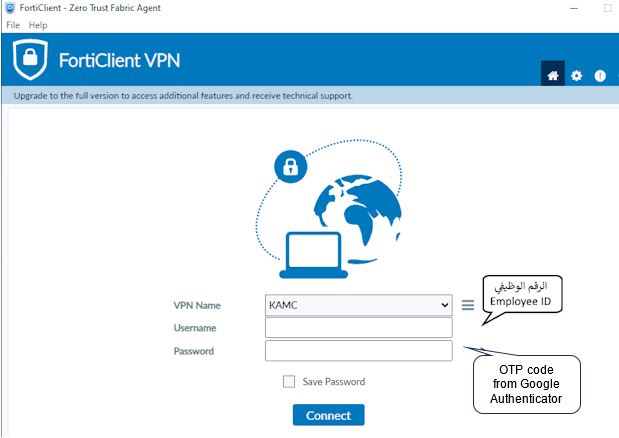
When attempting to connect remotely (VPN) or accessing the "Medical City Applications" page:

  In the username field: Enter your employee ID.

  In the password field: Enter the code displayed in the Google Authenticator app (not your regular password).

ICapt2.JPG
How to access KAMC's applications from the internet?
When accessing applications portal through KAMC's website (www.kamc.med.sa), you will enter your username as usual. However, in the password field, you will only need to enter the OTP code displayed in the Google Authenticator mobile application, and you do not need to enter a password.​

Capt22.JPG


MFA
MFA for Kamc Employee


​​​​​​​
How to enroll?
Install SafeNet MobilePASS+ application in your mobile
Watch the video to learn about the steps to configure your MFA, or read the instructions below.
​​https://​www.kamc.med.sa/Security_Awareness/MFA.mp4​
To continue, it's recommended to open this email from a computer and then follow the steps:​


First case: If you opened this email from a computer:

You will receive another email for activation after this one
Sender name: "Multi-Factor Authentication"

Subject: “MFA Activation Link"

  1. Click the link in the activation email
  2. Select your device type
  3. Open MobilePass+ in your mobile
  4. Scan the QR code


Second case: If you opened the link from a computer:

You will receive another email for activation after this one
Sender name: "Multi-Factor Authentication"

Subject: “MFA Activation Link"

  1. Click the link in the activation email
  2. fSelect your device type from the list
  3. Copy the code
  4. Open the “MobilePASS+" application in your phone
  5. Select “No QR Code"
  6. Paste the code​
How will remote access (VPN) be handled after activating multi-factor authentication?
When attempting to connect remotely (VPN) from 5th May, you will enter your username in the FortiClient program as usual. However, in the password field, you will only need to enter the code displayed in the MobilePass program, and you do not need to enter a password.
vpn.png

How to access KAMC's applications from the internet?
When accessing applications portal through KAMC's website (www.kamc.med.sa), you will enter your username as usual. However, in the password field, you will only need to enter the OTP code displayed in the MobilePass mobile application, and you do not need to enter a password.

vpn2.png


MFA for non Employee

In commitment to protecting your data and to further strengthen our security measures, we are implementing a new Multi-Factor Authentication (MFA) system. Starting Sunday May 26th 2024, remote access to KAMC (VPN) will only be possible with MFA. You need to take an action.

 What do you need to do?​​
Enroll your account in MFA as soon as possible.
 How to enroll?
1-  Install Google Authenticator app in your mobile
   Email with an activation​ link will have the following properties:
   Subject: "Two-Factor Authentication Activation Link"
   Sender: "Multi-Factor Authentication"

  Click on the link in the email to open the activation page.
 
  If you are opening the activation page from a device other than your mobile phone:
     1-    Open the Google Authenticator app on your mobile phone.
     2-    Select "Add a code".
     3-    Scan the barcode displayed on the activation page.
     4-    Enter the 6-digit code displayed in the Google Authenticator app on your mobile phone into the "Enter your OTP" field on the activation page and then click "Validate".

 ​If you are opening the activation email on the same mobile phone that has Google Authenticator installed:
         1- From the activation page, select "Click here to enroll the token on this device".
         2-  ​In the Google Authenticator app, accept saving the code.
         3- Enter the 6-digit code displayed in the Google Authenticator app on your mobile phone into the "Enter your OTP" field on the activation page and then click "Validate".​

When attempting to connect remotely (VPN) or accessing the "Medical City Applications" page:

  In the username field: Enter your employee ID.

  In the password field: Enter the code displayed in the Google Authenticator app (not your regular password).

ICapt2.JPG

How to access KAMC's applications from the internet?
When accessing applications portal through KAMC's website (www.kamc.med.sa), you will enter your username as usual. However, in the password field, you will only need to enter the OTP code displayed in the Google Authenticator mobile application, and you do not need to enter a password.​

Capt22.JPG